

Accounts and sign-in
Arbinel changes how sign-in works for people who use more than one account and for apps that sign users in through the instance. Everything else about accounts works as described in Forgejo’s documentation.
Linked accounts after an OAuth2 sign-up
Section titled “Linked accounts after an OAuth2 sign-up”When you sign up through an external OAuth2 provider, such as GitHub, Codeberg or GitLab, Arbinel links that provider account to your new account. It shows under Settings → Security → Linked accounts, like a provider you link later. Forgejo does not create this link, so the list stays empty for accounts that signed up through a provider (forgejo#11857).
The link is created only for new sign-ups. Accounts that signed up through a provider before the change do not get one.
Selecting Remove on the provider you signed up with also stops you from signing in through that provider, and your account becomes a local account. Arbinel refuses this when the account has no password and no link to another provider, because you would have no way to sign in. Set a password first, under Settings → Account, and then remove the link.
Switch between accounts
Section titled “Switch between accounts”The account switcher lets you stay signed in to several accounts in one browser, such as your own account and a bot account, and move between them without signing out.
- Open the user menu in the top right corner.
- Select Add an account and sign in to the other account, including its two-factor step if it has one. You can also sign in through an OAuth2 provider.
- Open the user menu again. Under Switch account, select the account you want to use.
When you switch, Arbinel reloads the current page as the other account, so you stay on the same page. Select the × next to an account, labelled Remove from this device, to drop it from the list. Sign out signs out of every account in the browser at once.
Arbinel keeps the list of accounts in your session on the server, so a browser can only switch to an account that signed in during that session. You cannot switch to a suspended or deactivated account, and Arbinel removes it from the list. The Remember me cookie follows the account you switch to.
Choose an account when an app signs you in
Section titled “Choose an account when an app signs you in”When an app uses Arbinel as its OAuth2 provider, it can ask you which account to continue with.
The app adds prompt=select_account to the authorization request, as defined by OpenID Connect.
Arbinel then shows a page titled Choose an account for “<app>”, before the usual consent screen. It lists the account you are signed in with and the other accounts in your account switcher, each as Continue as <name>.
- Continue as <name> switches the browser to that account and continues the authorization as that account.
- Use another account starts Add an account, then returns to the app’s authorization.
- Cancel returns an
access_deniederror to the app.
Choosing an account switches the whole browser to it, not only the app.
Other prompt values are ignored, as in Forgejo.
For app developers
Section titled “For app developers”Add select_account to the prompt query parameter of /login/oauth/authorize:
prompt can hold several space-separated values, and Arbinel shows the chooser when one of them is select_account.
The client ID, redirect URI and PKCE checks run before the chooser, and fail the same way as without it.
Use it for a “switch account” link in your app, so the user does not have to sign out of the forge first.
Consent screen
Section titled “Consent screen”Before an app gets access, the consent screen asks <app> wants to access your account. It shows the account you are signed in with and a Use another account link, which opens the account chooser described above.
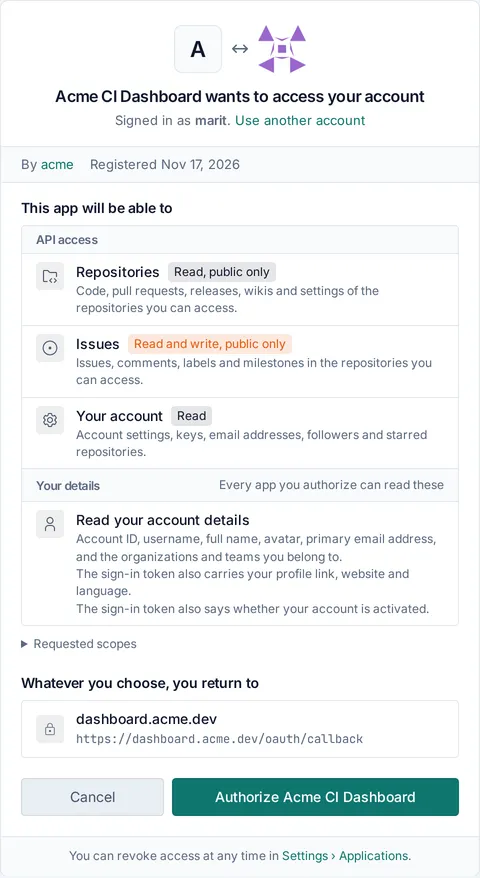
The screen lists:
- The app’s owner and the date it was registered.
- What the app will be able to do, most dangerous first:
- Act as you, with full access, in red, when the token gets full access.
- One row per API token scope category, such as Repositories or Issues, marked Read or Read and write, and public only where
public-onlynarrows it. Write access to repositories, organizations or your account, and site administration, are shown in red. Site administration is struck through when it grants nothing: when you are not a site administrator, or when the app also asked forpublic-only. - Read your account details, which every app gets: your account ID, username, full name, avatar, primary email address, and the organizations and teams you belong to.
The userinfo endpoint returns these to any token, whatever scopes it was granted.
When the request includes
openid, Arbinel also says what the ID token adds forprofileandemail.
- No API access when the token can call no API route, for example when the app asked only for
public-only. - The scopes Arbinel does not recognize, which grant nothing, and the scopes exactly as requested, under Requested scopes.
- The host Arbinel sends you back to, whether you authorize or cancel, with the full redirect URI below it when it adds a path. A plain HTTP redirect to another machine gets a warning. A redirect to the local machine or to an app’s own URI scheme is marked as returning to an app on this device.
Authorize <app> grants access, and Cancel returns an access_denied error to the app.
The authorize button turns red when any row is red or the redirect uses plain HTTP.
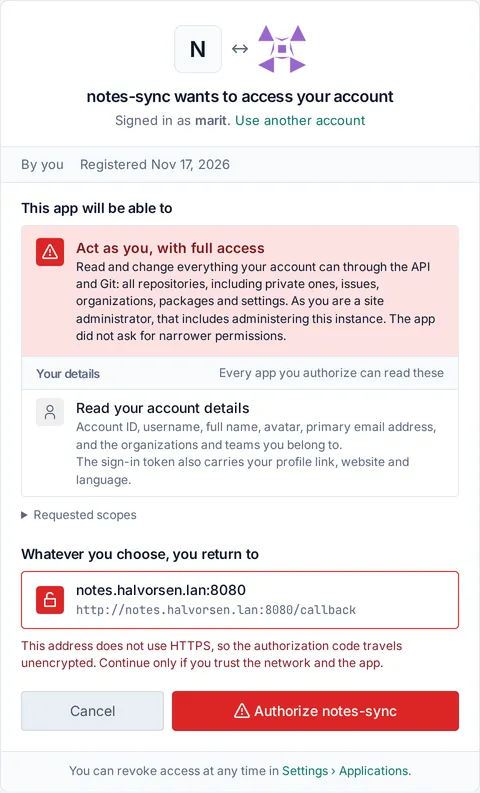
You can revoke a grant later under Settings > Applications.
Arbinel reads the scope the way the token does, split on single spaces.
An item joined by a comma or a tab, such as read:user,read:package, is not a scope, so the page lists it as not recognized.
If nothing else in the request is an API scope, the token gets full access, and the page says so.
Forgejo shows a full-access warning on every consent screen, even when the app asked for narrow scopes.
Whether the token gets full access depends on the scope the app requests:
| Requested scope | Token the app gets | Full-access row |
|---|---|---|
No scope, or only openid, profile, email and groups |
Full access to the account | Shown |
Includes all |
Full access to the account | Shown |
API token scopes, such as read:user or public-only |
Limited to those scopes | Hidden |
Edit an access token
Section titled “Edit an access token”You can change an access token after you create it, and its secret stays the same. Applications that use the token keep working and get the new permissions on their next request.
- Go to Settings → Applications.
- Select Edit next to the token.
- Change its name, its Repository and organization access, or its permissions.
- Select Update token.
Arbinel checks the changes like a new token.
For example, a token for specific repositories still needs at least one repository, and you can only give it the issue and repository permissions.
Editing a token does not change the date it was last used.
If the token covers repositories you can no longer access, Arbinel does not list them and shows a warning.
Updating the token removes them from it.
The permission list shows the admin category to administrators only, so updating a token without that category removes its admin permissions.
The API cannot edit a token. Use the settings page, or create a new token with the API.
Compared with Forgejo
Section titled “Compared with Forgejo”- Signing up through an OAuth2 provider creates a linked account, and removing the link stops you from signing in through that provider.
- The account switcher and
prompt=select_accountdo not exist in Forgejo. - The consent screen lists each permission in plain words, shows the app’s owner and redirect host, and warns about full access only for grants that get it. Forgejo shows the raw scope string and always shows the full-access warning.
- You can edit an access token’s name, repository access and permissions. In Forgejo you have to delete the token and create a new one with a new secret.